How to Choose a Template for Your Website on Squarespace
When creating a website on Squarespace, the first thing you need to do is choose a template. Templates serve as a starting point for your site’s design, although you can modify them later to match the visual style you want for your website.
So far, so good… the problem arises when there are two versions of Squarespace available and the templates work differently in each one.
Since this might be a little confusing, I'll explain it in this post:
What are the two versions of Squarespace currently available?
What are the differences between the templates?
The criteria you should follow when choosing a template in each version.
In which cases do I recommend using one version or the other, and which template?
And finally, how to tell which version you're using.
Table of Contents
What are the two versions of Squarespace available, and why you need to know this first
First, let's make this very clear. The two versions of Squarespace currently available are:
Squarespace 7.0 (legacy)
Squarespace 7.1 (new)
For the past few years, the available version of Squarespace was 7.0. Sites created between October 2014 and June 2020 ran on that version.
In June of this year (2020), Squarespace launched the latest version of its platform—version 7.1—in the Spanish-speaking market. There are several differences between this latest version of Squarespace and the previous one (I wrote a comparison here), but one of the most striking is that the templates work very differently.
How templates work in Squarespace 7.0 and 7.1, and what the differences between the templates are
Templates in Squarespace 7.0 (previous version)
We have template families, which are groups of templates with different designs but shared features. For example, the templates in the Bedford family include a sidebar for the blog, a feature that isn't available in the Brine template family.
This means that, in Squarespace 7.0, it was very important to know what features your template included, because the template would determine the specific features and tools available for your site.
Since each template offers different features, this version of Squarespace lets you switch templates: if you didn’t realize your template didn’t include a sidebar for your blog and you need one, you can switch to a template from the Bedford family—and that’s it; this change updates both the design and the available features.
As you can imagine, this system was a bit confusing for users, especially if you were new to the platform and weren't quite sure how the templates worked, or that your site's features depended on which one you chose.
That is why the concept changed completely with the new version of the platform.
Templates in Squarespace 7.1 (latest version)
In this new version, all templates work the same way. In other words:
In Squarespace 7.1, no matter which template you choose, your site will have access to all the features available on the platform.
This means that if there’s an element you see in one template but not in another, it’s simply a matter of how that particular template is designed; it’s possible to have the same functionality or element in another template—it’s just a matter of settings and design.
This makes it much easier for users to choose a template for their site because they don't have to worry about whether the template will include this or that: they all include the same features, and the only difference between them is the initial design of your website.
Since all the templates work exactly the same way, in this version you can’t switch templates once you’ve chosen yours—simply because there’s no need to: they’re fully editable and serve only as a starting point for a design that you can modify endlessly (or almost).
What criteria should you use when choosing a template for each version?
Since templates work differently in each version, the criteria for choosing them also vary.
How to choose your template in Squarespace 7.0
If you’ve decided to start building your website with Squarespace and believe that version 7.0 is the best option for you (though I don’t currently recommend it), then you should choose a template based on the features you need, not on its design. You can modify the design, but you can’t change the features (unless you switch templates).
In general, I recommend choosing a theme from the Brine family: it’s the best theme available in version 7.0, very versatile, and packed with features. And if you need a sidebar, there are several ways to add one.
Template Comparison in Squarespace 7.0
Related: The Best Squarespace 7.0 Template
Here’s a PDF with a table summarizing the main features and functions included in each of the template families in Squarespace 7.0, so you can use it as a reference. Squarespace also has a more detailed article on the topic in its knowledge base.
How to choose your template in Squarespace 7.1
In the latest version of Squarespace, choosing a template is much easier, since you only need to consider one aesthetic criterion: simply pick the one you like best and that most closely matches the final design you want for your site.
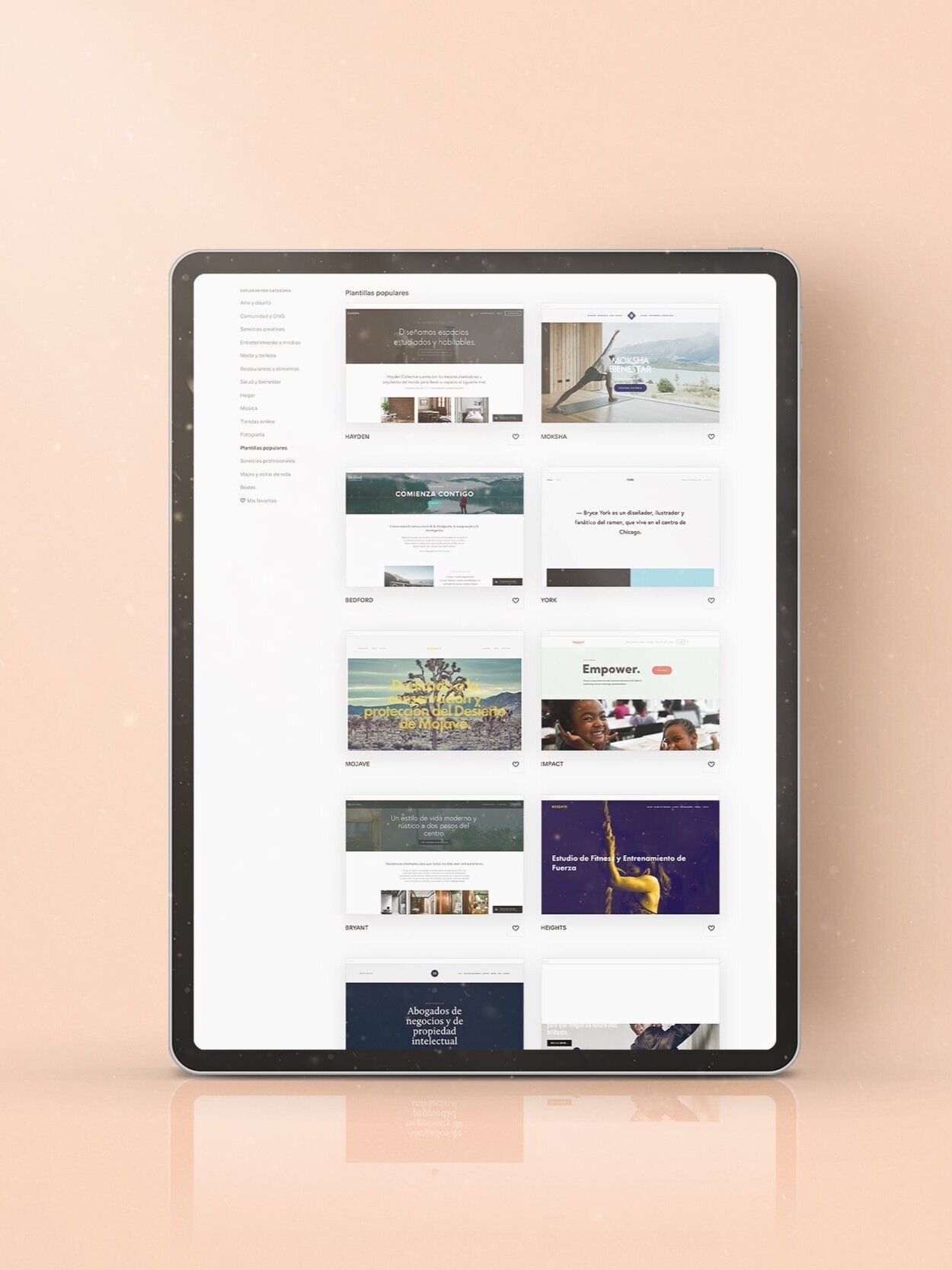
If you have any questions, you can use the different categories on the left side of the screen, depending on the type of site you want to create:

When to use one version of Squarespace or the other
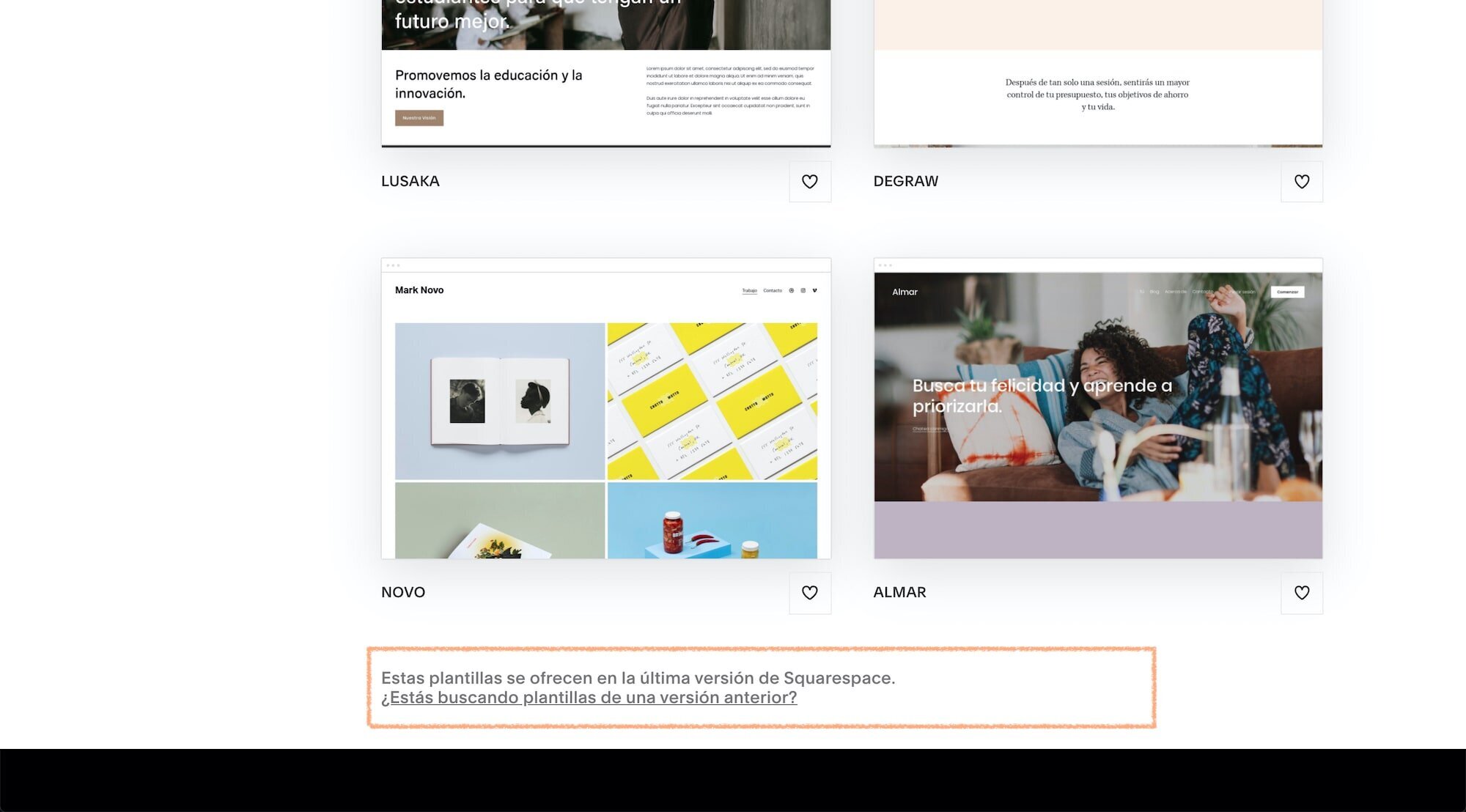
Currently, if you're creating a site on Squarespace, the default template options are all in version 7.1, since that's the latest version of the platform.
However, if you scroll to the bottom of the page or follow this link, you can access the 7.0 templates and have the option to create your site using this version:
How to find out which version of Squarespace I'm using
Finding out which version of Squarespace you're using is very easy: for starters, if you created your site after June 2020, you're most likely using the latest version of the platform.
To make sure, go to your website's admin panel and look under "Help" at the bottom; there's a message there:
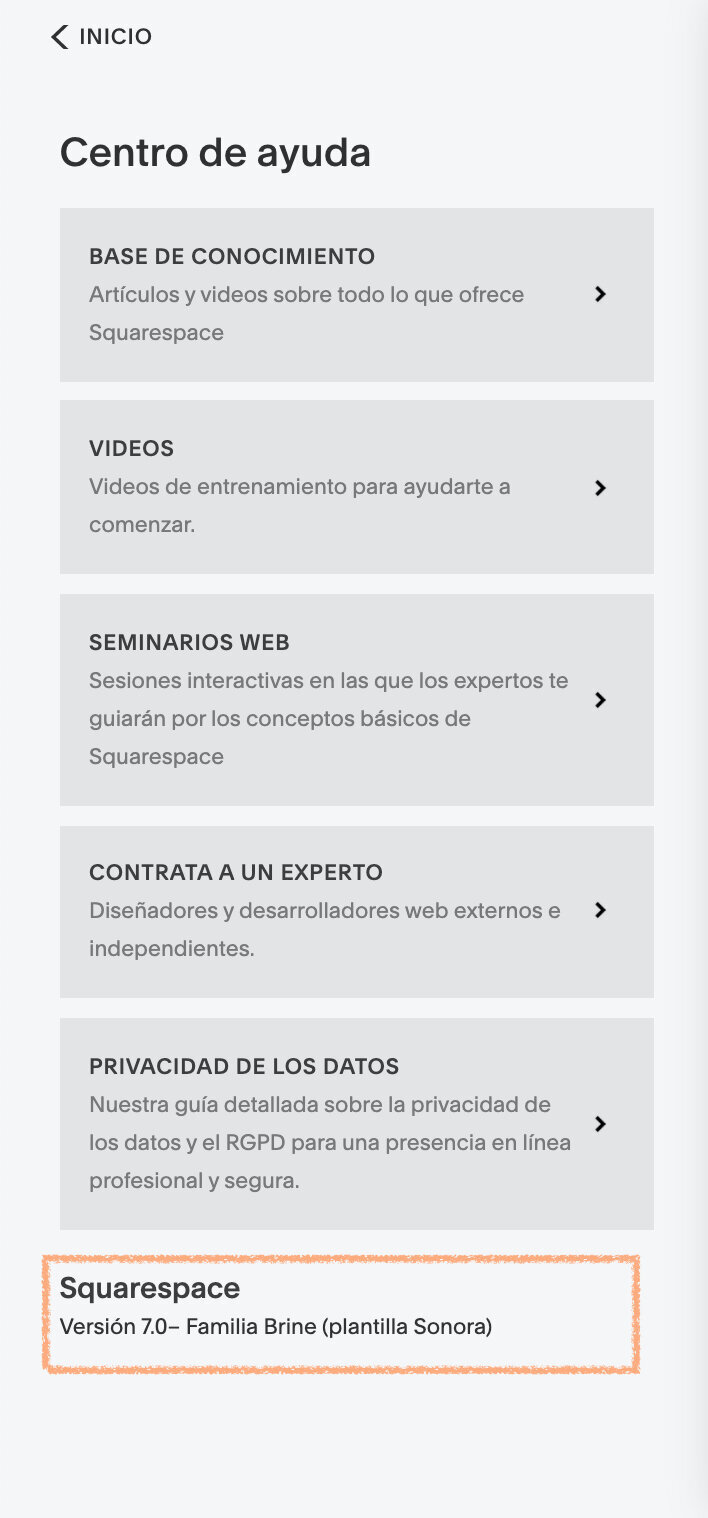

The interface also differs slightly between the two versions, especially in how the Design panel works and how content and sections are managed on the pages, but the method I just explained is the simplest one.
In general, I recommend creating your site using the latest version of Squarespace, which is the default option when you create a new site. Remember that, when choosing a template in Squarespace 7.1, you just need to consider how it looks and select the one that best matches the type of site you want to create or the final design you want for your website.



![How to Sell Online Courses with Squarespace [Updated for 2024]](https://images.squarespace-cdn.com/content/v1/6788d438405dc03eabea6c99/1737020477911-65DRZUM6E66MDXLHVRT9/cursos-Squarespace.jpg)