How to Optimize Squarespace for SEO (and Make Google Love You)

First of all, I want to make it clear that I’m by no means an SEO expert. But one of the best experts shares her thoughts on SEO and Squarespace in this post, in case you’d like to hear from someone who knows a lot more than I do.
Still, I think it’s worth noting how easy Squarespace makes it to optimize your site for search engines—without having to install any plugins or rack your brains. For me, the fact that Squarespace includes everything I need for good SEO without having to install anything extra is a real plus… one less thing to worry about.
I’m not going to go into detail here about everything Squarespace can do for SEO (if you’re interested in the topic, you can find more information at this link). The point of this post is to cover the basics you should be doing on your site and show how easy it is with Squarespace.
On-site SEO in general
This is the information you should include on your site when you first set it up. Once you've done that, you don't need to change it unless something has changed (such as your site's theme or your business information).
The title and description
One of the first things Squarespace will ask you to do when you create your website is to write a description of your site and give it a title.


I recommend that you don't skip this step, and if you do, don't forget to add the description later. To do this, go to Settings > Website > Basic Information in the Squarespace admin panel.
You can also add a description for search engines under Settings > Website > SEO. This description is what will appear on Google, and from here you can also change the format in which the site's page titles are displayed.


Your business information
With Squarespace, you can add all your business information (name, address, phone number, hours of operation, etc.) under Settings > General > Business Information. This might seem trivial, but it can be very helpful for Google if you include it.


Custom 404 Page

A 404 page is the error page that appears when someone clicks on a URL on your site that doesn't exist. I often see websites that leave the default page provided by their template as-is, and this is a serious mistake—not only from an SEO perspective but also in terms of design.
It’s not the same to be searching for something and land on a soulless page as it is to land on one with a personalized message that also gives you options to navigate elsewhere on the site. It’s much more pleasant; you retain that visitor and show them that you’ve thought through every moment of their interaction with you—even when things don’t go as planned and they’re looking for a page that no longer exists.
Also, when it comes to SEO, it seems that Google gives you some bonus points for this, so take advantage of the fact that Squarespace lets you create a custom 404 page. To do this, just create the page—just as you would any other page in the Pages section—and customize it however you like. Then, go to Settings > Website > Advanced > 404 Error / Page Not Found and select which of your existing pages you want to use as your 404 page.

SSL Certificates
This is another thing you don't have to worry about when you have a Squarespace site, since the platform includes SSL certificates for all its sites. The option to have search engines index the secure version of your URL is selected by default when you create a website on Squarespace, but if you'd like to change these settings, you can go to Settings > Website > Security & SSL.
Responsive design
Did you know that nearly half of all internet traffic now comes from mobile devices? There’s so much traffic from cell phones that Google will penalize your site if it doesn’t have a responsive design.

I couldn't believe it, but the truth is that this very website gets more than half of its traffic from mobile devices... so if you're visiting from your phone, you know that the Visual Bloom design is responsive. But this isn't unique... all Squarespace templates are ready to work on any screen, without having to do (or pay for) anything extra. What’s more: if you want to take mobile optimization to the next level, you have the option to enable AMP (Accelerated Mobile Pages). Just go to Settings > Website > Blogging and click.
The language of your site
One thing that will help with your site's SEO is ensuring that the template you use displays the standard website text (such as "Read more," "Add to cart," etc.) in your visitors' language, which in our case is Spanish.
Google's external services
The final general SEO adjustment you need to make when creating your site on Squarespace is to link it to your Google Analytics account. To do this, simply go to Settings > Website > Advanced > External Services and enter the code provided by Google. If you’re not sure how to get that code, you can check Google’s documentation here.
You can also go to Settings > Website > Advanced > URL Mappings to get yoursitemap and submit it to Google for indexing.
On-Page SEO
Once you’ve finished with the general site settings, it’s time to move on to the SEO settings for each page. If you’re building your site from scratch, you can do this as you create each page. And if your site is already up and running but you didn’t set this up earlier, you’ll basically need to go to the settings for each page on the site and add the necessary information. As with everything else, it’s very easy to do with Squarespace.
Page titles and URLs
I assume that if you're reading this post, you know the basics of SEO and understand that page titles are very important. In Squarespace, you can enter the title when you're creating the page (from the "Pages" section in your site's admin panel), or later by accessing its properties. You can also edit the URL from the properties if you don't like the one Squarespace automatically assigns based on the title.


Page descriptions
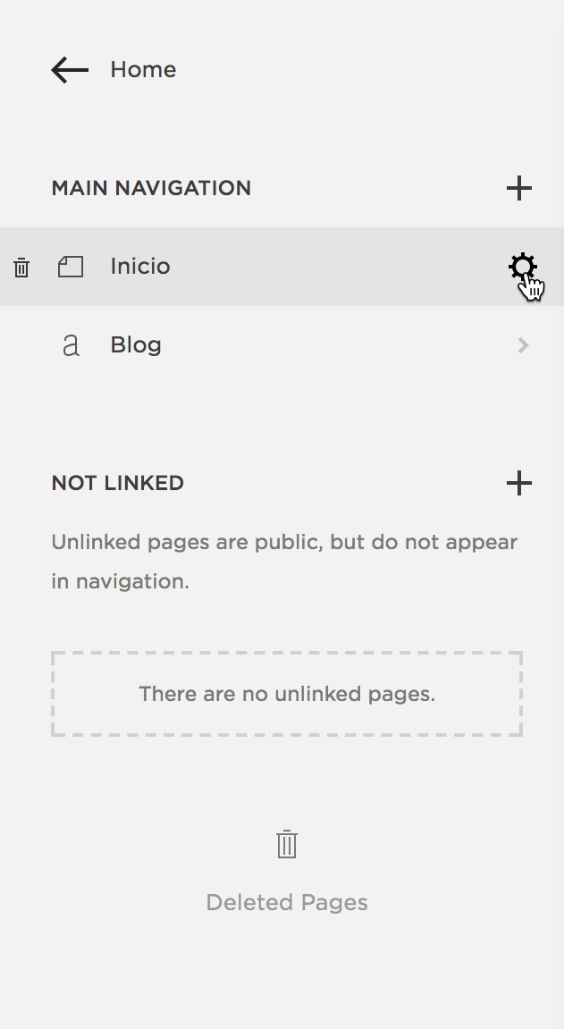
You can add the description in the page's properties window. You can do this on regular pages or on special pages, such as the Blog or a Cover Page.

SEO on the Blog
As you know, blogs are a powerful marketing tool, and they're great for your site's SEO. On Squarespace, you have several options for optimizing your blog to make it more appealing to Google.
post summary

I recommend that you always write a summary for your post. It doesn’t have to be long or complicated—just a couple of sentences explaining what the post is about. Every time you create a new post on Squarespace, a window like the one shown below will appear, and in the “Options” tab, you can add the summary and a cover image, among other things.
This will ensure that this summary appears alongside the post's cover image on your Squarespace blog page, and this text also serves as the image's alt text, which will help with SEO.
The post's URL
Another SEO best practice is to make sure the post URL matches the title. Squarespace automatically takes the title of your post and converts it, but you need to be careful with words that have accents. I always double-check it to correct anything and ensure that the post’s URL matches its title. You can do this in the Options window for each post, under “Post URL.”
Formats and headings (H1, H2, H3, quotes, etc.)
Like any reputable platform, Squarespace has a text formatting toolbar that includes H1, H2, and H3 headings, blockquotes, bold text, and more. Using these formatting options isn’t just good for your site’s SEO—it also makes your text easier to read and more understandable. Take a look at my own posts to see how you can use them.
Categories and tags
Categories and tags are a way to organize your blog’s content internally. Using them will allow you to include related posts at the bottom of your pages, for example. Plus, when you use them, you’re also letting Google know what your blog is about and what topics you usually cover.

Optimized images

I discussed the importance of optimizing images for SEO in a previous post, and everything I mentioned there can be easily applied in Squarespace. Even if you forget to rename the file, you can do so after uploading the image under “Filename (Optional).”
Remember to always add a description to the image, which will serve as the Alt attribute. If you don't want the caption with the description to appear, simply select "Do not display caption" in the image options, and that's it... the description is saved for SEO purposes, but it won't be visible.
In summary
Squarespace is a very user-friendly platform, so there’s no excuse not to take full advantage of everything it offers to make your website visible in search engines. You can optimize your site for SEO overall, on a page-by-page basis, for blog posts, and also for store listings, if you have a Squarespace plan that includes that feature.